
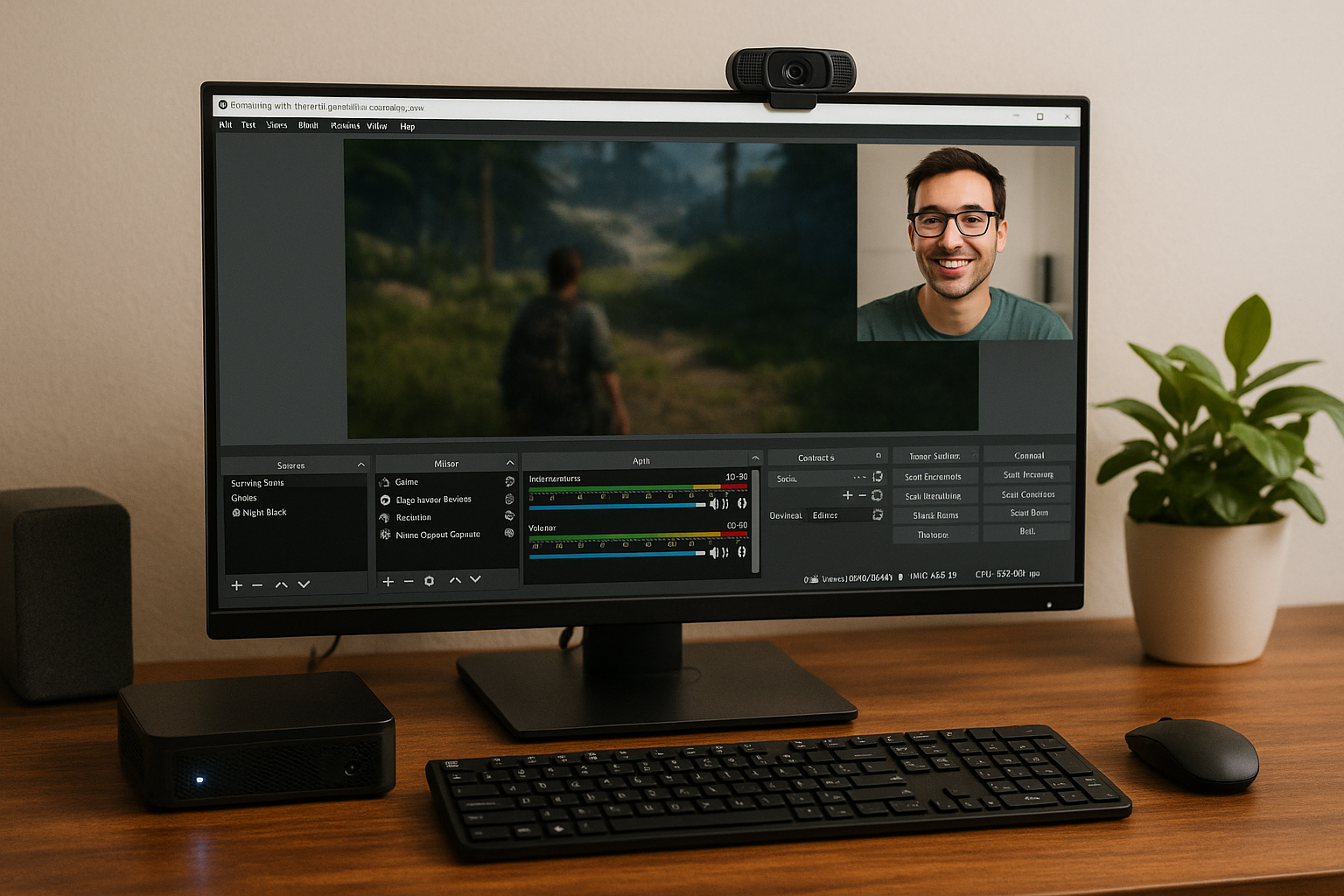
For many gamers in 2025, streaming gameplay is more than just a hobby—it’s a way to connect with communities, showcase skills, and even build a personal brand.
But what if you’re using a PC or laptop without a dedicated GPU? Can you still stream games with integrated graphics? The short answer is yes—but with limits and smart optimization.
Thanks to recent advancements in integrated graphics (iGPUs) and modern processors, streaming on a GPU-free setup is not only possible—it can be surprisingly effective.
Whether you’re on Twitch, YouTube Live, or Discord, this guide will walk you through everything you need to stream games with integrated graphics.
Why Stream with Integrated Graphics?
Streaming with iGPUs makes sense for many users. Dedicated GPUs are expensive, power-hungry, and bulky. Not everyone has access to high-end hardware, especially students, new creators, or those living in areas where GPU prices remain inflated.
Modern iGPUs like AMD Radeon 780M or Intel Arc (found in Core Ultra chips) now come with built-in hardware encoders, making them capable of both rendering your game and handling the streaming process—something that was nearly impossible a few years ago.
Benefits of Streaming on iGPU Systems
- Low cost entry: No need for a dedicated GPU or streaming rig
- Less heat and noise: Great for small spaces and long sessions
- Portable: Works well on compact laptops and Mini PCs
- Energy-efficient: Uses less power than traditional streaming PCs
Let’s break down what’s needed to get started—and how to make it work smoothly.
Hardware Requirements for iGPU Streaming
Here’s what you need at a minimum for a stable streaming setup:
CPU / APU
Modern iGPUs with built-in encoders are essential:
- AMD Ryzen 7 8700G / 8600G with Radeon 780M/760M
- Intel Core Ultra 5/7 with Arc iGPU
- Intel i5-13400 / i7-13700 with UHD 770 + Quick Sync Video
Older iGPUs (like Intel HD or Vega 3) are not recommended for modern streaming due to encoder limitations and poor graphics support.
RAM
Integrated graphics use shared memory, so you need plenty:
- Minimum: 16GB DDR4/DDR5 dual-channel
- Recommended: 32GB for better multitasking and headroom
Storage
- SSD (NVMe preferred): Faster read/write helps OBS, game loading, and OS responsiveness
- HDDs cause stutter and slow file access when writing video
Network
A stable internet connection is critical for stream quality:
- Minimum: 10 Mbps upload
- Recommended: 20 Mbps+ upload for 1080p 60fps streaming
Use Ethernet if possible. Wi-Fi can introduce latency, especially in crowded environments.
Software Setup: Streaming with OBS Studio
OBS Studio is the gold standard for streamers—and it’s free. With the right setup, it works perfectly with integrated graphics.
Installation and First Steps
- Download OBS Studio from the official site
- Run the auto-configuration wizard for streaming
- Select your platform (Twitch, YouTube, etc.)
- Input your stream key
- Choose your encoder (more on that below)
Choosing the Right Encoder
Here’s where modern iGPUs really shine. Both Intel and AMD now support hardware encoding:
- AMD (Radeon 700M series): Use H.264/AVC (AMF encoder)
- Intel (UHD 770 or Arc): Use Quick Sync Video (QSV encoder)
- Fallback: Software (x264) if hardware encoding fails—but avoid this on iGPUs
Hardware encoders offload the work from your CPU, keeping your game smooth even while streaming.
Best Streaming Settings for iGPU Builds
Your goal is to strike a balance between quality and performance. Here are ideal OBS settings for iGPU streaming:
Output Settings (Streaming)
- Encoder: H.264 (AMD AMF or Intel QSV)
- Rate Control: CBR (Constant Bit Rate)
- Bitrate:
- 2500 kbps for 720p 30fps
- 3500–4500 kbps for 720p 60fps
- 6000 kbps for 1080p 30fps
- Keyframe Interval: 2
- Preset: “Balanced” or “Quality”
- Profile: High
Video Settings
- Base (Canvas) Resolution: 1920×1080
- Output (Scaled) Resolution: 1280×720 (for performance)
- Downscale Filter: Bicubic (good balance)
- FPS: 30 or 60 (depending on your game)
Reducing output resolution is one of the most impactful changes you can make for smoother streaming.
Games That Stream Well on Integrated Graphics
Some games work better than others. Here are genres and titles ideal for streaming with iGPU setups:
Esports Titles
- Valorant
- League of Legends
- CS2 (on low settings)
- Rocket League
- Dota 2
Indie and 2D Games
- Stardew Valley
- Celeste
- Slay the Spire
- Hades
- Undertale / Deltarune
Simpler AAA and Open World
- Minecraft (Java + Optifine)
- GTA V (low settings)
- The Sims 4
- Terraria
- Don’t Starve Together
Avoid games like Cyberpunk 2077, Starfield, or Red Dead Redemption 2 unless using cloud gaming.
Optimizing Game Performance While Streaming
Running a game and a stream at the same time can be demanding. Use these tips:
Lower In-Game Settings
- Reduce textures, shadows, and effects
- Cap FPS at 60 to lower CPU/GPU load
- Run in Borderless Windowed mode if available
- Use resolution scaling or FSR/XeSS when possible
Close Background Tasks
- Shut down browsers, music apps, updaters, and any overlays (e.g. Discord overlays)
- Use Task Manager to kill unnecessary background tasks
Enable Game Mode in Windows
This dedicates more system resources to the game and streaming processes.
Set OBS to High Priority
- Open Task Manager
- Right-click OBS process > Set Priority > “Above Normal”
This prevents frame drops from background services interfering.
Webcam and Audio Setup on a Budget
Streaming isn’t just gameplay—it’s personality. But even here, you don’t need expensive equipment.
Webcam Options
- Budget: Logitech C270 or any 720p USB webcam
- Phone as Webcam: Use DroidCam or Iriun over USB
- Lighting: Use daylight or a cheap ring light
Microphone Options
- Budget USB Mics: Fifine, Maono, or Tonor
- Headset Mics: Acceptable, but avoid laptop mics
- Noise Suppression: Use NVIDIA RTX Voice alternatives like RNNoise plugin in OBS or built-in noise gates
Streaming to Discord with Integrated Graphics
If you’re not aiming for a global audience, Discord is a great platform for casual streaming:
- Lower system demands
- No stream keys
- Stream to friends or servers instantly
Steps:
- Open the game
- Go to Discord > Voice Channel
- Click “Screen” > Choose the game window
- Select 720p or 1080p, 30fps or 60fps (based on Nitro level)
You’ll need far less bandwidth and processing power than YouTube or Twitch streaming.
Can You Record Gameplay Too?
Yes—but with a catch.
Recording and streaming simultaneously can be heavy on iGPUs. If you must:
- Use separate encoders (stream via AMF/QSV, record via software or vice versa)
- Lower recording bitrate to under 10Mbps
- Record in 720p unless you have 32GB+ RAM and an NVMe SSD
Alternatively, record after your session using replay buffer or highlights instead of full-session capture.
Best Laptops and Mini PCs for iGPU Streaming in 2025
Laptops
- ASUS Zenbook 14 OLED (Ryzen 7 7840U)
- Framework Laptop 13 (Intel Core Ultra 7)
- HP Envy x360 15 (AMD 8700G series)
- Lenovo Yoga 7i (Intel Arc iGPU)
Mini PCs
- Minisforum UM790 Pro (Ryzen 9 7940HS)
- Beelink SER6 Max
- Intel NUC 13 Pro (Intel UHD 770)
These offer strong integrated graphics performance, quiet operation, and plenty of ports for USB cams and mics.
Streaming Without Compromise: Cloud Gaming Combo
Combine integrated graphics with cloud gaming + local streaming:
- Play on GeForce NOW or Xbox Cloud Gaming
- Stream via OBS on local desktop
- Your hardware handles the stream, cloud handles the game
It’s like using a virtual GPU to bypass limitations—ideal for heavier titles.
Final Thoughts
Streaming games with integrated graphics in 2025 is no longer a pipe dream. With hardware encoders, smarter software, and proper setup, you can go live and share your gameplay even without a GPU.
Is it perfect? No. But it’s powerful, accessible, and impressive for a setup that costs a fraction of a full gaming rig.
If you’re passionate, resourceful, and willing to optimize, integrated graphics can take you further than you ever imagined.

Chris Dalton is a tech enthusiast with a passion for helping others build high-performance PCs on a budget. He shares practical advice, in-depth guides, and honest insights to empower freelancers, gamers, and creators to get the most out of their hardware. With hands-on experience and a focus on smart, affordable solutions, Carlos Eduardo turns complex tech into accessible knowledge for all.