
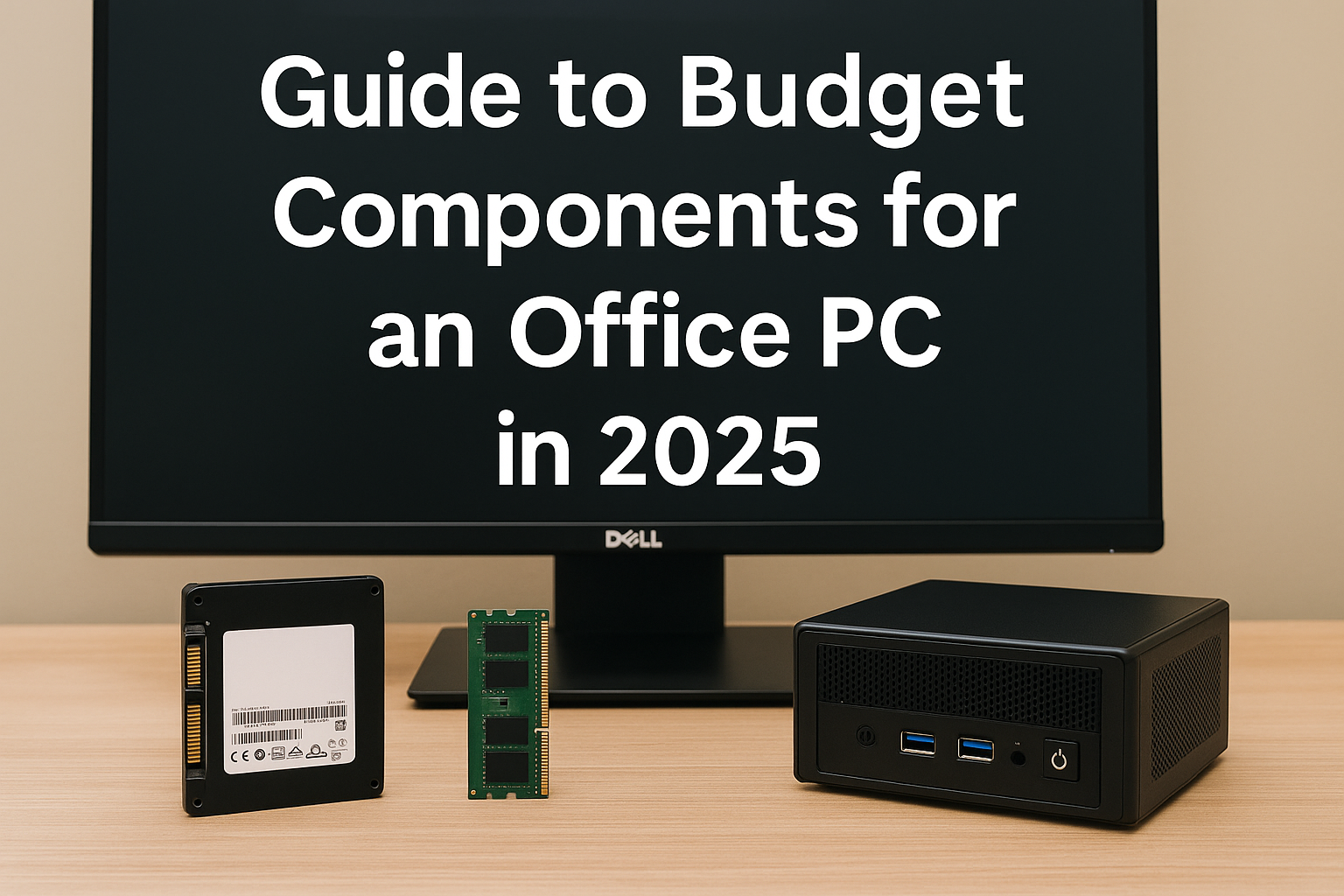
Building an office PC on a budget in 2025 is a practical and rewarding endeavor, thanks to the availability of high-performance, affordable components that deliver exceptional value.
For under $600, you can assemble a reliable, efficient, and quiet PC tailored for productivity tasks such as document editing, web browsing, video conferencing, and light media editing.
This comprehensive guide walks you through selecting the best budget components, assembling your PC step-by-step, and optimizing it for a seamless office experience.
Whether you’re a freelancer, remote worker, student, or small business owner, this build strikes the perfect balance between cost and functionality, offering a professional setup that enhances your workflow without straining your wallet.
By carefully choosing components and following this guide, you’ll create a future-proof PC that meets your needs in 2025 and beyond, with room for upgrades as your requirements evolve.
Why Build a Budget Office PC in 2025?
Office PCs don’t require high-end specs to perform well.
A budget build handles daily tasks efficiently.
This guide maximizes value without overspending.
Key Considerations for an Office PC
Prioritize reliability, energy efficiency, and quiet operation.
Your PC should run smoothly without distracting noise.
Here’s how to select components for an affordable setup.
Processor (CPU): AMD Ryzen 3 8300
The AMD Ryzen 3 8300 is ideal for budget office builds.
Its 4 cores and 8 threads manage office software effortlessly.
Priced at around $100, it’s a cost-effective choice.
Integrated Graphics: AMD Radeon 740M
The Ryzen 3 8300 includes Radeon 740M integrated graphics.
These handle office tasks and light media editing well.
No dedicated GPU is needed, keeping costs low.
Motherboard: A620 Micro-ATX
An A620 Micro-ATX motherboard supports the Ryzen 3 8300.
It offers PCIe 4.0 and DDR5 for future-proofing.
Reliable models are available for about $90.
Memory (RAM): 8GB DDR5 (1x8GB)
8GB of DDR5 RAM is sufficient for office tasks in 2025.
It supports web browsing, spreadsheets, and video calls.
Expect to spend around $40 for a single stick.
Storage: 500GB NVMe SSD
A 500GB NVMe SSD ensures fast boot and file access.
Brands like Western Digital offer affordable options.
Budget around $50 for a high-speed SSD.
Power Supply (PSU): 400W 80+ Bronze
A 400W 80+ Bronze PSU is efficient and dependable.
It supports low-power builds with room for upgrades.
Quality units are available for about $40.
Case: Compact Micro-ATX Case
A compact Micro-ATX case keeps your setup professional.
Choose one with decent airflow and a clean design.
Spend around $40 for a budget-friendly model.
CPU Cooler: Stock Cooler
The Ryzen 3 8300’s stock cooler is quiet and effective.
It maintains low temperatures during office workloads.
No aftermarket cooler is needed, saving costs.
Step-by-Step Guide to Building Your Office PC
Assembling an office PC is beginner-friendly and straightforward.
Follow these steps to create a reliable budget setup.
Work in a clean, static-free environment for safety.
Step 1: Prepare Your Workspace
Choose a spacious, well-lit area for assembly.
Gather tools like a Phillips screwdriver and cable ties.
Keep components in their packaging until needed.
Step 2: Install the CPU and RAM
Insert the Ryzen 3 8300 into the motherboard’s socket.
Secure it carefully, following the motherboard’s manual.
Place the 8GB DDR5 RAM stick in the primary slot.
Step 3: Mount the Motherboard
Secure the motherboard in the case using standoffs.
Tighten screws to ensure a stable connection.
Align the I/O shield for proper port access.
Step 4: Install the SSD
Slot the 500GB NVMe SSD into the M.2 port.
Secure it with the motherboard’s screw or clip.
Ensure it’s firmly in place for reliable performance.
Step 5: Connect the Power Supply
Install the 400W PSU in the case’s PSU bay.
Connect the 24-pin motherboard cable and 8-pin CPU cable.
Route cables neatly to avoid clutter.
Step 6: Cable Management
Organize cables to improve airflow and aesthetics.
Use cable ties to bundle loose cables together.
Ensure no cables block airflow paths.
Step 7: Power On and Install Software
Connect your monitor, keyboard, and mouse.
Install Windows 11 or a free Linux distro like Ubuntu.
Download motherboard and graphics drivers for optimal performance.
Optimizing Your Office PC for Productivity
A well-optimized PC enhances your daily workflow.
Simple tweaks can improve speed and efficiency.
Here are key tips for a seamless office experience.
Install Essential Software
Use free tools like LibreOffice for documents and spreadsheets.
Install a reliable browser like Firefox or Chrome for web tasks.
Add Zoom or Microsoft Teams for video conferencing.
Update Drivers Regularly
Download the latest AMD drivers for the Radeon 740M.
Updated drivers ensure smooth performance and stability.
Check for updates every few months.
Minimize Background Processes
Disable unnecessary startup programs to free up resources.
Use Task Manager to monitor CPU and RAM usage.
This keeps your PC responsive during work.
Enable Power-Saving Features
Set your PC to a balanced power plan in Windows.
This reduces energy consumption and heat output.
It’s ideal for long office hours.
Recommended Software for Office Work
Your PC should support key productivity tools.
Here are free or affordable options for 2025.
Each is lightweight and budget-build compatible.
LibreOffice
LibreOffice is a free alternative to Microsoft Office.
It handles documents, spreadsheets, and presentations.
Perfect for budget-conscious users.
Google Workspace
Google Docs, Sheets, and Slides are cloud-based and free.
They’re ideal for collaborative work and remote teams.
Access them via any modern browser.
Notion
Notion offers free project management and note-taking tools.
It’s great for organizing tasks and schedules.
The free tier suits small offices or freelancers.
Budget Breakdown and Cost-Saving Tips
Here’s the cost breakdown for your $600 office PC:
- CPU: $100
- Motherboard: $90
- RAM: $40
- SSD: $50
- PSU: $40
- Case: $40
- Windows 11 license: $100 (optional; use Linux for free)
Total: ~$460–$560, depending on deals.
How to Save More
Shop at retailers like Newegg or Amazon during sales.
Look for refurbished or open-box components.
Consider Linux to avoid Windows licensing costs.
Troubleshooting Common Issues
Budget builds may encounter minor issues.
Here’s how to resolve common problems quickly.
Always check connections before troubleshooting.
PC Fails to Boot
Verify the PSU is powered on and cables are secure.
Ensure the RAM is fully seated in its slot.
Check the CPU installation for bent pins.
Slow Performance
Close unnecessary programs running in the background.
Ensure your SSD isn’t nearly full, as this slows performance.
Update drivers to fix compatibility issues.
Noisy Operation
Check that the stock cooler is dust-free.
Ensure the case has adequate airflow.
Replace loud fans if needed, within budget.
Benefits of a Budget Office PC
A $600 office PC is reliable and efficient.
It handles daily tasks without breaking the bank.
Its compact design fits small workspaces perfectly.
Upgrade Paths
Add another 8GB RAM stick for multitasking.
Upgrade to a 1TB SSD for more storage.
Switch to a Ryzen 5 CPU for heavier workloads.
Conclusion: Your Path to a Cost-Effective Office PC
Building a budget office PC in 2025 is a strategic move for professionals seeking affordability without sacrificing performance.
This $600 setup, powered by the AMD Ryzen 3 8300 and Radeon 740M integrated graphics, delivers reliable performance for essential tasks like document editing, video conferencing, and light media work.
Its compact Micro-ATX case and quiet stock cooler create a distraction-free environment, ideal for home offices, small businesses, or students.
By selecting cost-effective components, you save money while maintaining functionality, with ample room for future upgrades like additional RAM or storage.
This guide provides a clear, step-by-step roadmap, from choosing components to optimizing software, ensuring your PC meets your needs in 2025 and beyond.
Whether you’re managing spreadsheets, joining virtual meetings, or organizing projects, this build offers the perfect balance of efficiency, affordability, and quiet operation.
Start building today to enjoy a seamless, budget-friendly office experience that boosts productivity and fits your workspace perfectly.

Chris Dalton is a tech enthusiast with a passion for helping others build high-performance PCs on a budget. He shares practical advice, in-depth guides, and honest insights to empower freelancers, gamers, and creators to get the most out of their hardware. With hands-on experience and a focus on smart, affordable solutions, Carlos Eduardo turns complex tech into accessible knowledge for all.