
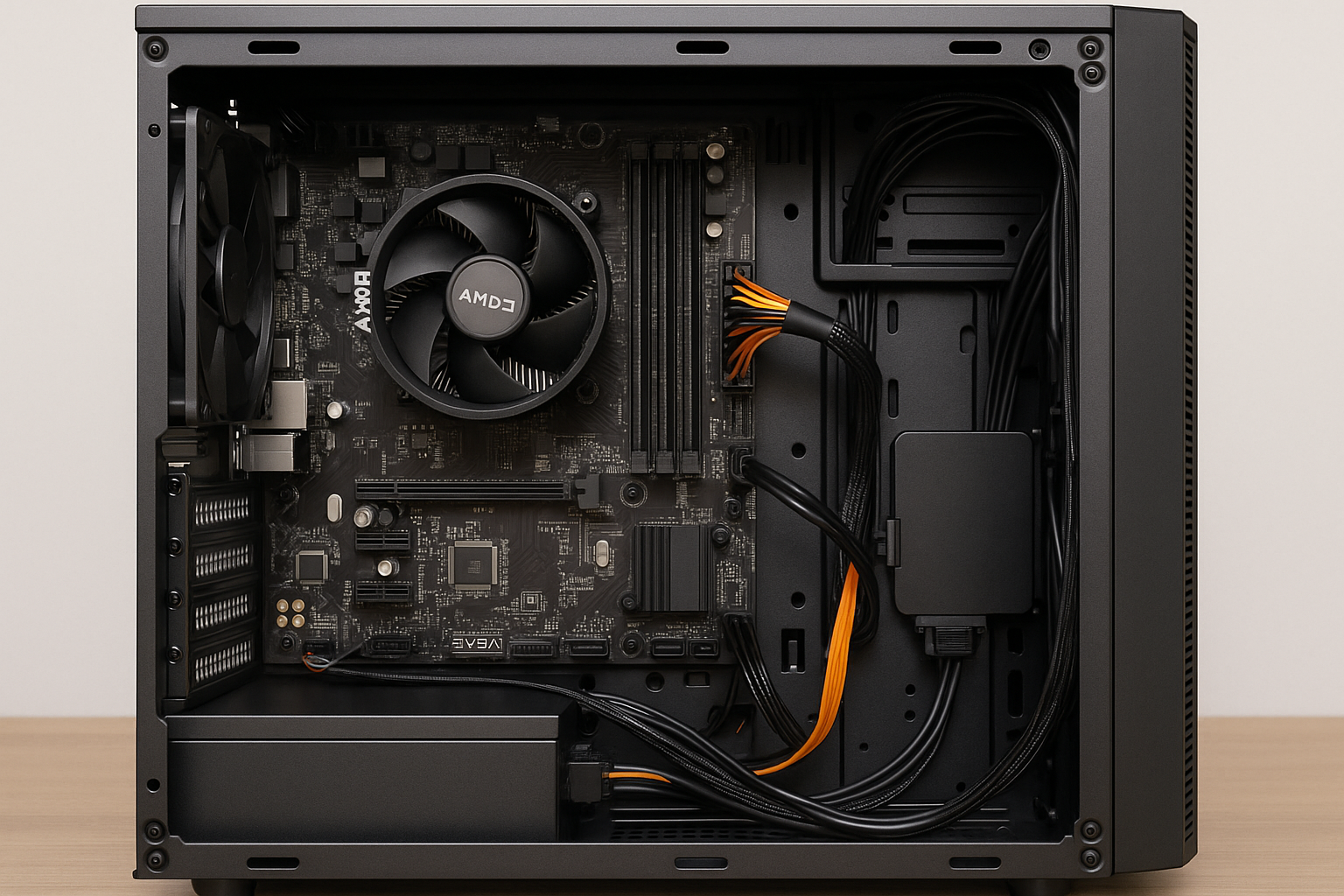
Building your first PC on a $400 budget is an exciting challenge that teaches you hardware fundamentals and delivers a capable machine for everyday tasks.
By focusing on value-oriented parts, strategic buying, and a clear assembly plan, you’ll end up with a system that handles web browsing, media playback, light productivity, and even casual gaming.
Follow this humanized, detailed guide—packed into concise 2–3 line paragraphs—and you’ll finish with confidence in roughly two hours from unboxing to first boot.
Why a $400 Build Is Worth Your Time
A $400 budget forces smart decisions, steering you away from overpriced gimmicks and toward components that matter.
You learn to prioritize CPU performance, storage speed, and power efficiency.
The result is a PC that feels responsive in Windows, zips through document editing, and smoothly streams HD video. Plus, your friends will gape at your custom rig—built at a fraction of prebuilt prices.
Planning Your Budget Allocation
Breaking down $400 makes each component’s importance clear. Here’s a target spend:
- CPU with Integrated Graphics: $80–$90
- Motherboard (micro-ATX): $60–$70
- 8 GB DDR4 RAM: $35–$45
- 480 GB SSD: $40–$50
- Power Supply (80 Plus Bronze, 450 W): $40–$45
- Micro-ATX Case: $30–$40
- Miscellaneous (thermal paste, extra cables): $10–$20
That adds up to $295–$350, giving you a $50–$100 buffer for shipping, tax, or snagging a slightly better part on sale.
Choosing Your CPU: The Heart of the System
For this build, AMD’s Athlon Gold 5200G (four cores, integrated Radeon graphics) is a top pick at around $90.
Its Vega 7 graphics outperform older APUs, handling light gaming (e.g., Rocket League, Valorant) at low settings and powering everyday tasks.
If you find a Ryzen 3 3200G on sale for $80, it’s a worthy alternative—just check that your motherboard’s BIOS is updated for compatibility.
Motherboard Selection: Essential Features Only
A good micro-ATX board from ASRock, Gigabyte, or MSI will run about $65. Key features include:
- AM4 Socket Support: for current and future AMD CPUs
- Two DDR4 Slots: enabling dual-channel RAM later
- One PCIe x16 Slot: for a future GPU upgrade
- At Least Four USB Ports: including one USB 3.0 header
- Basic Audio Codec & LAN Port: for daily use
Skip built-in Wi-Fi and RGB; they inflate prices without boosting performance.
Memory Matters: Speed and Capacity Balance
Get 8 GB of DDR4 RAM, ideally a 2×4 GB kit at 3000 MHz (~$45). Dual-channel operation significantly improves integrated GPU bandwidth, resulting in smoother video playback and marginally higher frame rates in casual games.
If you must, start with a single 8 GB stick (2666 MHz, $35) and add a matching module later when budget allows.
Storage Strategy: SSD Over HDD
A 480 GB SATA SSD (~$45) is non-negotiable for system responsiveness. Boot times drop to under 10 seconds, applications open instantly, and Windows updates finish faster.
Mechanical HDDs may offer more capacity, but they slow down everything. If you require extra bulk storage, consider a secondhand 1 TB HDD for under $20 in local marketplaces—just verify its health before purchase.
Power Supply: The Foundation of Stability
Invest $40 in a 450 W, 80 Plus Bronze PSU from Corsair (CX450), EVGA (BA450), or Thermaltake (Smart RGB). These units include essential protections—over-current, over-voltage, and short-circuit—that safeguard your parts.
Cheap, unbranded PSUs risk sudden failures and can damage other components. Quality here ensures longevity and peace of mind.
Case Selection: Function Over Flash
A basic micro-ATX case for $30–$40 will house all your parts neatly. Prioritize:
- Good Airflow: front or side vents with included fans
- Front I/O Ports: at least two USB ports and audio jacks
- Tool-Less Drive Bays: speeding up installation
- Removable Dust Filters: for easy cleaning
Discard flashy lighting or tempered glass panels—they drive up costs without improving functionality.
Peripheral Considerations
On a tight build budget, reuse existing peripherals: keyboard, mouse, and monitor. If you need to purchase, aim for:
- Monitor: 1080p, 60 Hz, under $100
- Keyboard & Mouse Combo: basic wired sets for $20–$30
These peripherals suffice for daily work and learning your way around PC building.
Shopping Tips: Timing and Sources
• Price Trackers: Set alerts on CamelCamelCamel and PCPartPicker to spot dips.
• Open Box & Refurbished: Retailers often sell returned items at a discount with full warranty.
• Local Deals: Facebook Marketplace and Craigslist can yield excellent secondhand parts—always meet in public and test before buying.
• Seasonal Sales: Prime Day, Black Friday, and Cyber Monday often feature deep discounts on CPUs and SSDs.
• Cashback Extensions: Browser add-ons like Honey or Rakuten can net you a few extra dollars back.
Unboxing and Preparation
Clear a spacious, well-lit desk. Lay an anti-static mat—or a clean cotton cloth—to protect parts. Gather your Philips screwdriver, zip ties, and thermal paste (if CPU cooler doesn’t include pre-applied paste). Organize components in the order you’ll install them: motherboard, CPU, cooler, RAM.
Step 1: CPU & Cooler Installation
Open the motherboard’s CPU socket lever, align the CPU’s triangle with the socket marker, and gently place it down. Lower the lever to lock it.
If your cooler has pre-applied paste, set it atop the CPU and secure it per the instructions. If not, apply a pea-sized dab of thermal paste at the CPU center, then affix the cooler evenly.
Step 2: RAM Installation
Push aside the latches on two adjacent RAM slots. Align your sticks by the notch and press firmly until the latches click back.
Dual-channel kits should go into slots A2 and B2 (check the manual). Proper alignment and firm pressure ensure a solid connection.
Step 3: Mount Motherboard in Case
Remove the case’s side panels and install standoffs matching your motherboard’s hole pattern. Align the I/O shield, then place the board onto the standoffs.
Secure with screws, ensuring it sits flush. Connect the 24-pin and 8-pin ATX power cables from the PSU to the motherboard.
Step 4: SSD and PSU Installation
If you have a 2.5″ SSD, slide it into a drive bay and secure with screws or tool-less clips. For M.2 SSDs, insert into the M.2 slot at a slanted angle, press down, and fasten with a tiny screw.
Mount the PSU in its bay, orienting the fan toward vents, then secure it with screws. Route the PSU cables neatly to their destinations.
Step 5: Front Panel & Case Fans
Identify front-panel headers on the motherboard—power switch, reset, HDD LED, USB, and audio. Refer to the manual for pinout diagrams. Carefully press each cable onto its pins.
Connect case fans to system fan headers. Proper connections allow you to control fan speeds via BIOS or software.
Step 6: Cable Management
Use zip ties or Velcro straps to bundle cables behind the motherboard tray. Tuck excess lengths into unused drive bays.
A tidy interior promotes unobstructed airflow, lowering temperatures and noise levels. Good cable management also makes future upgrades or troubleshooting much easier.
Step 7: First Boot and BIOS Setup
Power on and tap Delete or F2 to enter BIOS. Verify your CPU, RAM, and SSD are detected. Enable XMP or manually set RAM to its rated speed for optimal performance.
Set your SSD as the primary boot device. Save and exit, then insert a Windows installation USB to begin OS setup.
Installing Your Operating System
Boot from the USB installer, follow prompts to partition your SSD (a single partition is fine), and proceed with Windows installation.
Let updates download—this can take 20–30 minutes. Once in Windows, install chipset drivers from your motherboard’s website, then graphics drivers (if applicable). Lastly, set up Windows Power Plan to “Balanced” for efficiency.
Performance Expectations
Your new $400 rig delivers:
- Boot & Wake Times: Under 10 seconds
- Office & Browsing: Smooth multitasking with 10+ Chrome tabs
- Media Playback: 1080p video at 60 FPS without stutter
- Casual Gaming: 30–50 FPS in titles like Rocket League, LoL, and Dota 2 at low-to-medium settings
It’s perfect for students, home offices, and first-time builders seeking a reliable system.
Future Upgrade Paths
Thanks to the AM4 socket, you can later install a Ryzen 5 3400G (~$120) for 4 cores and Vega 11 graphics. Adding a second 8 GB RAM stick doubles bandwidth, boosting integrated GPU performance. When budget allows, a used GTX 1650 for $100–$120 elevates gaming to medium settings at 1080p. Always check PSU capacity and case clearance before adding a discrete GPU.
Troubleshooting Common Issues
- No Power: Check PSU switch, 24-pin, and 8-pin connections.
- No Display: Reseat RAM, verify BIOS version supports your CPU, and ensure monitor cable is in the motherboard’s HDMI/DP port.
- Random Shutdowns: Examine PSU voltages in BIOS, ensure cooler is seated properly, and clean dust filters.
Communities like r/buildapc and manufacturer forums are invaluable for step-by-step fixes.
Final Tips for Builders
• Stay Patient: Rushing leads to bent pins or forgotten cables.
• Photograph Your Steps: If you disassemble, photos help reassembly.
• Label Cables: Masking tape and a marker prevent mix-ups.
• Keep Manuals Handy: They clarify connector labels and mounting procedures.
• Celebrate Small Wins: First POST (Power-On Self-Test) is always rewarding.
Embarking on a $400 PC build teaches resourcefulness, technical skills, and budget maximization.
You’ll end up with a machine tailored to your needs and the confidence to tackle more advanced builds in the future. Happy building!

Chris Dalton is a tech enthusiast with a passion for helping others build high-performance PCs on a budget. He shares practical advice, in-depth guides, and honest insights to empower freelancers, gamers, and creators to get the most out of their hardware. With hands-on experience and a focus on smart, affordable solutions, Carlos Eduardo turns complex tech into accessible knowledge for all.