
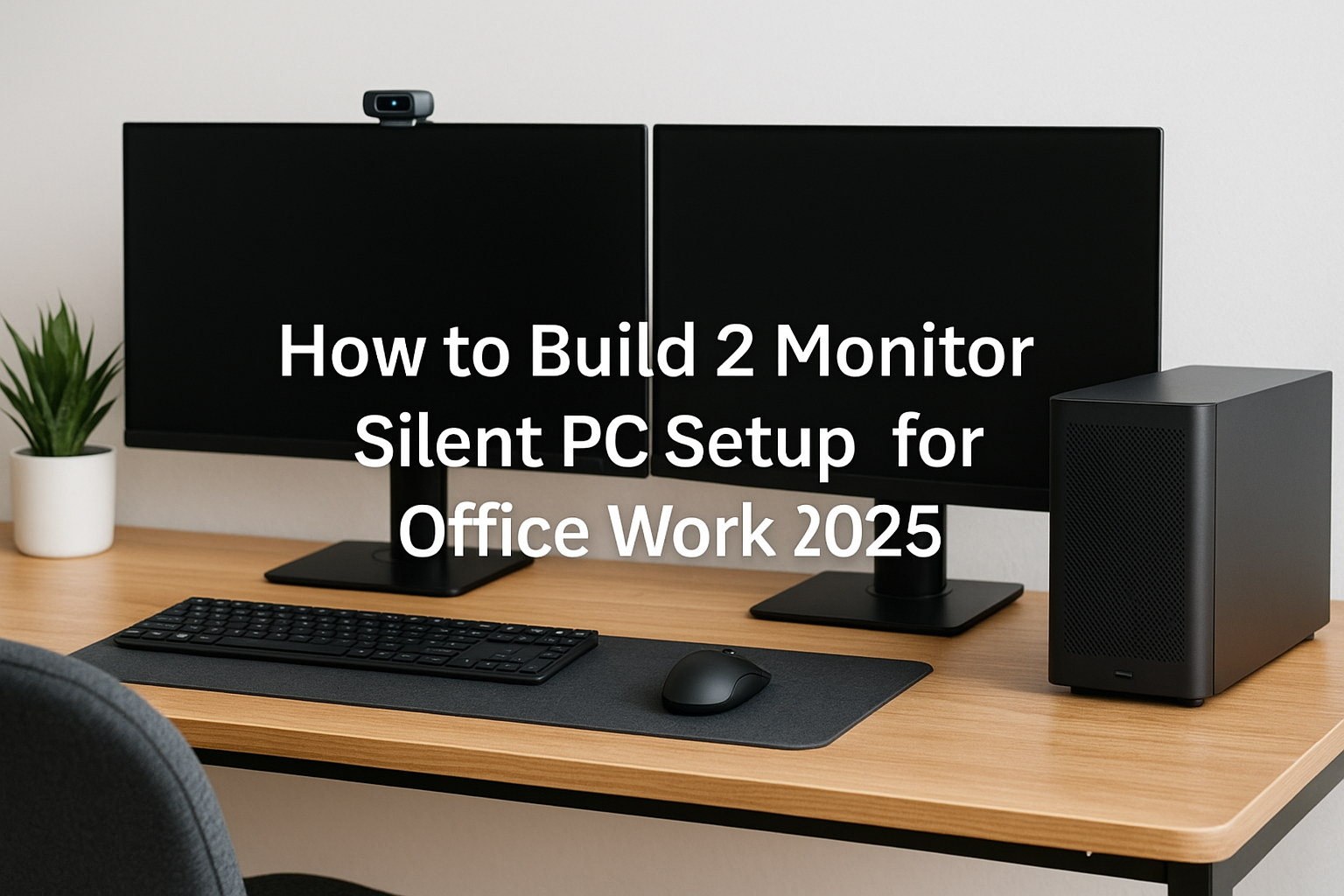
In an era where remote work, multitasking, and digital productivity have become the norm, having a dual-monitor setup can be a game changer for office efficiency.
But what often goes unnoticed is how much noise your PC contributes to your workspace. In 2025, the goal isn’t just performance—it’s silent performance.
A dual-monitor silent PC build is no longer reserved for enthusiasts. It’s accessible, reliable, and even affordable.
This article walks you through everything you need to build a quiet dual-monitor PC setup specifically for office work.
Whether you’re crunching numbers, managing projects, editing documents, or leading virtual meetings, this guide will help you choose the right components, reduce acoustic distractions, and create a calm, high-performance environment.
Why Go Dual Monitor?
The benefits of using two monitors for office work are well established:
Enhanced multitasking: One screen for work, the other for communication
Reduced window switching: Keep reference docs open while working
Better meeting management: Share one screen, take notes on the other
Improved workflow for analysts, writers, developers, and designers
Ergonomically efficient when set up correctly
But adding an extra monitor shouldn’t increase fan noise or system strain. That’s why silent optimization is key.
Silent PC Goals for Dual Monitor Setups
To keep your system silent while driving two displays, you’ll need:
A CPU or GPU capable of supporting dual 1080p, 1440p, or 4K monitors
A power supply with hybrid or fanless cooling
An SSD-only storage setup
Fans that spin slowly or stay off under light workloads
Smart BIOS or software-level fan curves
Noise-dampening case design
Modern CPUs and integrated graphics can easily support two monitors—no GPU required if chosen well.
Choosing the Right CPU
Select a processor that includes high-performance integrated graphics and has a low thermal design power (TDP). This minimizes the need for active cooling and keeps the system whisper-quiet.
Top CPU Options for Silent Dual Monitor Office PCs
AMD Ryzen 7 8700G
Integrated Radeon 780M graphics
Supports up to 4 displays (2 x 4K at 60Hz)
Low idle wattage, high multitasking capability
65W TDP with quiet or passive cooling options
Intel Core Ultra 7 165H
Arc integrated graphics with AV1 acceleration
Strong performance per watt
Good thermals and fanless laptop-derived architecture
AMD Ryzen 5 5600G
More budget-friendly
Great for dual 1080p or 1440p monitors
Easily cooled with passive or low-RPM air coolers
Avoid high-TDP desktop CPUs unless you need heavy processing power.
Motherboard Features That Matter
A silent dual-monitor system should be built on a motherboard that supports smart fan control and efficient power delivery.
Look for:
2+ display outputs (HDMI + DisplayPort or USB-C)
Passive chipset cooling
PWM fan headers with BIOS control
Low-noise VRMs (avoid boards with small active chipset fans)
Wi-Fi 6/6E and Bluetooth for wireless peripherals
Recommended chipsets:
AMD B650 or A620
Intel B760 or H770
Memory: Fast and Cool
Fast memory enhances integrated GPU performance, especially with AMD’s APUs. But for office use, capacity and efficiency matter more than pure speed.
Recommended Specs:
16GB minimum (2x8GB)
32GB ideal for multitasking or running virtual machines
DDR5 preferred for power efficiency
Low-profile modules for tight builds
Stick with well-known brands like G.Skill, Crucial, Corsair, or Kingston.
Storage: Go 100% Solid State
Mechanical drives add noise and vibration. Use M.2 NVMe SSDs exclusively.
Primary Drive:
1TB NVMe Gen 4 – Fast OS and app performance
Optional Secondary:
2TB Gen 3 or Gen 4 SSD – For projects and file storage
Top silent SSDs:
WD SN770
Samsung 990 Pro
Crucial P5 Plus
Kingston KC3000
For large file storage, consider external SSDs with USB 3.2 Gen 2×2 or Thunderbolt 4 support.
GPU: Do You Need One?
Most office users can skip a discrete GPU if they choose a CPU with strong iGPU capabilities. However, if you need hardware-accelerated media editing, more outputs, or better color accuracy, a quiet discrete GPU is worth considering.
Fanless GPU Options:
ASUS GT 1030 Silent
Palit GTX 1650 KalmX
Sapphire RX 6400 Silent Edition
Any card with 0 RPM idle fans
Use a GPU if:
You need 3+ monitor outputs
You do light creative work (Photoshop, Illustrator)
You want 10-bit color depth or HDMI 2.1 output
CPU Cooler: Quiet or Passive
Passive cooling is ideal for the ultimate silent build, but even active coolers can be quiet if tuned correctly.
Recommended Quiet Coolers:
Noctua NH-P1 (Passive)
be quiet! Shadow Rock LP
Scythe Big Shuriken 3
Arctic Alpine 23 Passive (budget option)
Noctua NH-L12S (low-profile, near-silent)
Choose a cooler that fits your case and keeps temps below 70°C during load.
Case Fans and Airflow Strategy
If your CPU and GPU run cool, a single slow-spinning case fan may be enough. Too many fans increase noise unnecessarily.
Best Silent Fans:
Noctua NF-A12x25 ULN
Arctic P12 Silent
be quiet! Silent Wings 4
Phanteks T30 (at low RPM)
Set fan curves in BIOS or via FanControl app. Target:
0 RPM below 40°C
500 RPM at 60°C
800 RPM max under full load
Power Supply: Hybrid or Passive Is Best
A loud PSU fan can undermine an otherwise silent system.
Recommended Models:
Seasonic Prime Fanless TX-500
Corsair RM750x Shift (0 RPM mode until 300W)
be quiet! Straight Power 12
SilverStone Nightjar NJ450-SXL (passive SFX)
Always check the PSU’s fan curve. Hybrid fanless modes work best for dual-monitor office loads.
PC Case: Choose Silence
Cases for silent dual-monitor setups should balance airflow and noise control.
Top Picks:
Fractal Define 7 Compact
be quiet! Pure Base 500
Cooler Master Silencio S600
Streacom DA2 V2 (for passive builds)
Fractal Terra (stylish and compact)
Look for noise-dampening foam, airflow tuning options, and modular interiors.
Display Considerations
Silent systems deserve ergonomically and visually optimized displays.
Ideal Features:
1440p or 4K resolution
IPS or OLED panel for clarity and color
Blue light filter and flicker-free backlight
Slim bezels for seamless dual setup
Adjustable stand or VESA mount
Popular office monitors in 2025:
Dell UltraSharp U2725QE
LG DualUp 28MQ780
BenQ PD2706U
ASUS ProArt Display PA278CV
Desk Setup and Cable Management
For a dual-monitor silent build, organize your workspace to reduce noise-related stress:
Use a monitor arm to keep desk clear
Install a cable tray underneath
Use Velcro ties or cable sleeves for neat routing
Elevate the PC slightly to improve airflow
Place the PC away from your ears (under or behind the desk)
Peripherals: Keep It Quiet
Choose accessories that match the silence of your system:
Silent keyboard (Cherry MX Silent, scissor switches, Topre)
Low-noise mouse (Logitech MX Master 3S or M330 Silent Plus)
Desk mat to reduce typing vibration
Noise-canceling headset or speakerphone for calls
Software Optimization for Silence
Tuning your software ensures your hardware stays quiet.
Use Windows’ Balanced Power Plan
Install FanControl for custom RPM curves
Use HWInfo or Open Hardware Monitor to track temps
Keep background processes minimal
Disable RGB lighting and unnecessary startup apps
Real-World Silent Dual Monitor Build (2025)
Use Case: Office productivity, video meetings, spreadsheets, coding
Monitors: 2x 27” 1440p Dell UltraSharp U2725QE
CPU: AMD Ryzen 7 8700G
Cooler: Noctua NH-P1
Motherboard: ASUS B650I Wi-Fi
RAM: 32GB DDR5
Storage: 1TB Samsung 990 Pro
GPU: Integrated Radeon 780M
PSU: Seasonic Fanless TX-500
Case: Fractal Define 7 Compact
Noise Level: 0 dBA idle, <22 dBA under load
Performance: Seamless multitasking, flawless dual-screen video
Final Thoughts
In 2025, you don’t have to choose between silence and productivity. With the right parts and planning, you can build a dual-monitor office setup that looks clean, works fast, and runs silently.
Whether you’re handling sensitive calls, deep-focus work, or creative multitasking, your PC should never distract you.
Silence is the new standard for high-performance office work—and now, it’s within reach.

Chris Dalton is a tech enthusiast with a passion for helping others build high-performance PCs on a budget. He shares practical advice, in-depth guides, and honest insights to empower freelancers, gamers, and creators to get the most out of their hardware. With hands-on experience and a focus on smart, affordable solutions, Carlos Eduardo turns complex tech into accessible knowledge for all.