
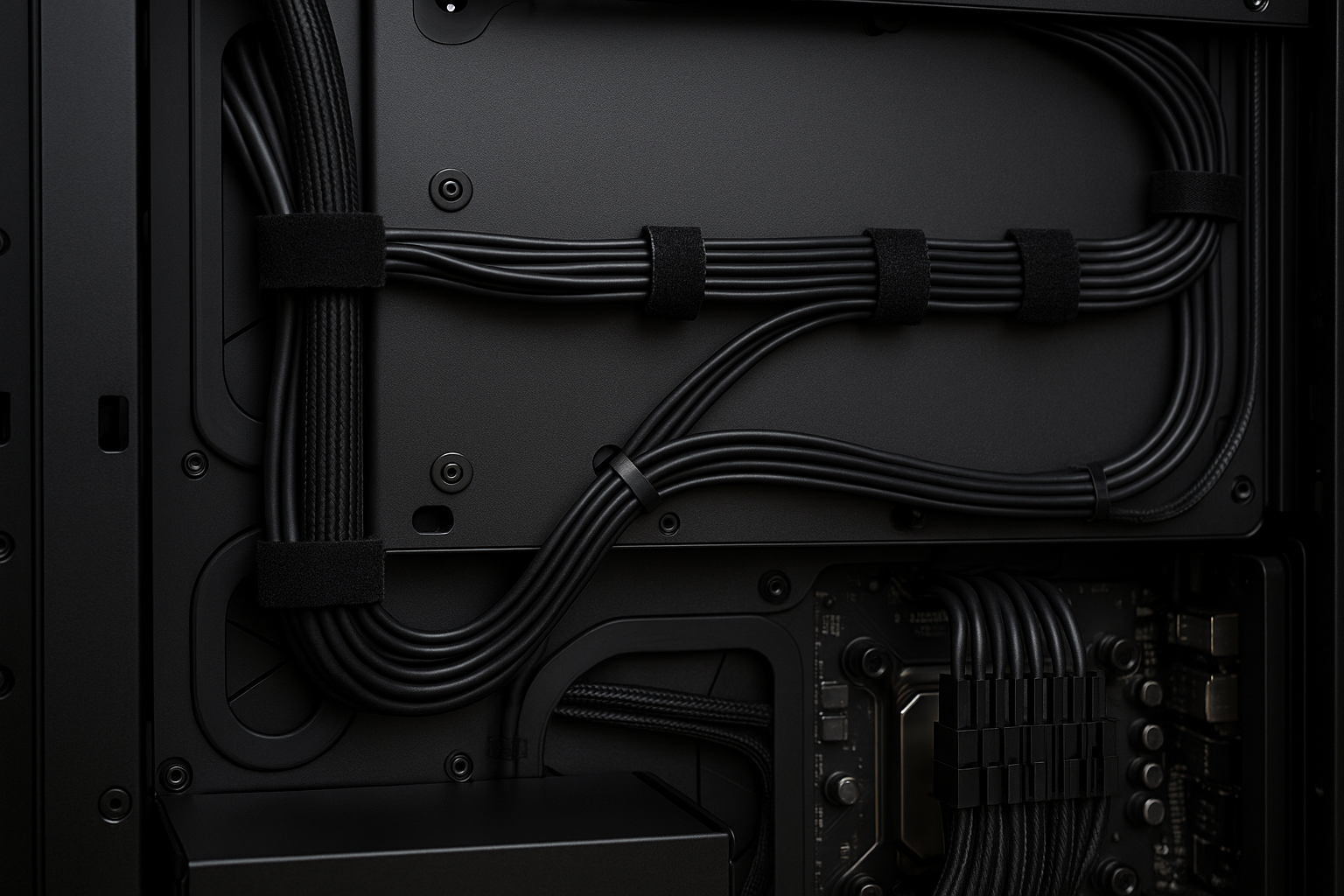
In the pursuit of a silent office PC, most users focus on fanless cooling, passive components, and noise-dampening cases. But one often-overlooked factor that contributes both to quiet performance and thermal efficiency is cable management.
Good cable management isn’t just about aesthetics—it plays a crucial role in:
- Improving airflow
- Reducing heat buildup
- Preventing fan ramp-ups
- Minimizing mechanical vibrations
- Creating a more organized and stress-free workspace
In 2025, with more compact builds and higher component density, proper cable routing is more important than ever—especially in silent and semi-passive office setups.
This guide will walk you through:
- Why cable management matters for silence
- Common airflow and noise problems caused by poor routing
- Best practices for managing cables in modern cases
- Tools and accessories that make cable management easier
- Real-world silent PC layout examples
Let’s bring order to the chaos and silence to your build.
Tired of noisy clicks and clacks at work? Discover the best silent keyboards and mice for a quieter, more focused office experience.
Why Cable Management Matters in a Silent Office PC
When airflow is restricted by messy or tangled cables, components like the CPU, GPU, and PSU heat up faster. Even in passive or semi-passive systems, this can lead to:
- Higher temperatures
- More frequent fan spin-up (in hybrid cooling setups)
- Electrical interference
- Increased strain on components
Messy cables also touch case panels, fans, or heatsinks—transmitting vibrations and producing unwanted buzzing or rattling.
By organizing cables properly, you ensure:
- Cooler hardware
- Longer component lifespan
- Lower fan speeds
- Zero vibration noise
- Easier maintenance
The Connection Between Airflow and Noise
The quieter your cooling system, the more it relies on natural airflow and heat dissipation. Poor cable management blocks airflow pathways, which forces:
- Case fans to spin faster
- CPUs to throttle
- PSUs to switch into active cooling mode
This creates a feedback loop:
Bad airflow → More heat → Fans spin faster → More noise
In a silent office PC, every degree counts.
Types of Builds Most Affected by Bad Cable Management
Some PC builds are more sensitive to airflow and noise than others.
🔻 SFF (Small Form Factor) PCs
- Space is limited; airflow is already tight
- Even one misplaced cable can block an exhaust path
🔻 Passive Cooling Systems
- Rely entirely on convection and heat sink radiation
- No fans = no forgiveness for heat pockets
🔻 Fanless PSUs or Hybrid PSU Modes
- Overheating can trigger fan activation
- Wires blocking PSU intake = unnecessary fan noise
🔻 Workstations with Multiple Drives or PCIe Cards
- More components = more cables = higher risk of chaos
In all cases, cable management becomes a noise-reduction strategy.
Step-by-Step Guide to Silent Cable Management
Let’s organize your PC step by step, focusing on acoustic-friendly cable routing.
✅ Step 1: Choose the Right Case
Your case determines how easy and effective cable management will be.
Look for:
- Spacious cable routing channels
- Rear PSU shroud or basement
- Rubber grommets and tie-down points
- Rear cable depth (25mm+ ideal)
Best silent cases for cable management (2025):
- Fractal Design Define 7 Compact
- be quiet! Silent Base 802
- Lian Li O11 Dynamic Mini
- NZXT H7 Flow (with custom dampening)
✅ Step 2: Use Modular Power Supplies
A fully modular PSU lets you:
- Connect only the cables you need
- Choose the ideal cable lengths
- Route cables cleanly without bunching unused lines
Semi-modular vs fully modular:
- Semi-modular: Some cables (like 24-pin) are fixed
- Fully modular: Every cable is optional
In a silent build, less cable clutter = better thermal performance.
✅ Step 3: Plan Before You Plug
Before connecting anything:
- Visualize your cable paths
- Group cables that go in the same direction
- Identify the nearest grommets or holes
Use pre-routing to avoid:
- Tight bends
- Cables hanging over fans or heatsinks
- Overlapping signal and power wires (can cause EMI noise)
✅ Step 4: Use Cable Combs and Sleeving
These keep cables parallel, neat, and less prone to vibration.
Best use cases:
- 24-pin motherboard cable
- GPU PCIe cables
- EPS (CPU power) cables
Sleeved extensions also reduce the slap or rattle that occurs when cables are loose in the case.
✅ Step 5: Secure All Cables Firmly
Even the best-routed cable can make noise if it vibrates.
Use:
- Velcro straps (reusable, non-abrasive)
- Cable ties (for permanent tension points)
- Adhesive cable mounts
- Foam padding between cable and panel
Tip: Never let a cable rest against a fan or heatsink—it will transmit vibration as noise.
✅ Step 6: Route Cables Behind the Motherboard Tray
This reduces visual clutter and airflow obstruction inside the main chamber.
Most modern cases include:
- Cutouts for CPU and GPU cables
- Tie-down points for every 2–3 inches
- Depth space for thick 24-pin or EPS cables
Use this area for:
- SATA power and data
- Front panel I/O
- RGB headers
- Fan hubs
✅ Step 7: Minimize Cable Crossings
Wherever possible, keep cables flat and running in straight lines. Crossing power and data cables can:
- Block airflow
- Increase electromagnetic interference (EMI)
- Create cable bounce or tap noise inside the case
✅ Step 8: Use Right-Angle Connectors
Right-angle cables (especially for SATA, USB 3.0, and motherboard headers) make it easier to:
- Keep cables tight against the case wall
- Avoid looping and flexing
- Prevent tension that leads to buzzing
✅ Step 9: Avoid Cable Slack Near Panels
Loose cables near side or front panels may:
- Rattle during fan spin-up
- Touch dampened foam and create vibration
- Press against mesh grills, causing hums
Route excess length toward the PSU shroud or cable trench.
Cable Management Accessories Worth Buying
Some of the best cable management happens with the right tools:
| Accessory | Purpose | Silent Benefit |
|---|---|---|
| Velcro straps | Bundle cables cleanly | No hard pressure points |
| Cable combs | Keep power cables parallel | Reduce slap and rattle |
| Right-angle adapters | Reduce bends | Minimize strain noise |
| Foam tape | Isolate cable-vibration areas | Stops transfer to case |
| Cable management sleeves | Organize external peripherals | Declutter and reduce desk noise |
External Cable Management for Quiet Workspaces
Don’t forget cables outside the PC:
📎 Tips:
- Use a cable box under your desk to hide the power strip
- Clip monitor and power cables to the desk leg with adhesive channels
- Avoid USB hubs that hum or create grounding feedback
- Keep loose wires off hard surfaces to prevent echo or movement
A clean desk setup = a quieter environment.
Cable Management in Fanless Builds
In completely fanless builds (like with a Noctua NH-P1 or Streacom DB6), cable management is mission critical.
Strategies:
- Minimize cable length to avoid heat pockets
- Use heat-resistant zip ties if near passive heatsinks
- Secure wires away from convection paths (above CPU or GPU)
- Consider vertical airflow orientation with cables routed laterally
Case Studies: Silent PC Cable Layouts
🧑💻 Office Build 1: Fractal Define 7 + Noctua NH-U12S
- Cables routed behind motherboard
- Only two case fans, low RPM
- GPU cable tucked flat along PSU shroud
- Result: 100% silent during idle and web work
🧑💻 Office Build 2: Lian Li A4-H2O SFF + Passive PSU
- Custom short PSU cables to avoid loops
- Zip-tied 24-pin to SSD tray
- SATA power stacked efficiently to avoid air block
Outcome: No coil whine, no fan ramp-up during 4-hour work sessions
Final Thoughts: Organized Equals Silent
Good cable management is a foundational part of building a quiet and efficient PC. It’s not just about making your build look pretty for Reddit or YouTube—it’s about airflow, heat, vibration, and long-term reliability.
Here’s your silence-first cable checklist:
✅ Use modular PSU to reduce clutter
✅ Route behind the motherboard tray
✅ Secure all cables with velcro or ties
✅ Use dampening materials near panels
✅ Avoid cable-fan contact
✅ Maintain clean airflow paths
✅ Tidy up external desk cables too
A well-managed PC is a silent PC. And in a quiet office, that makes all the difference.

Chris Dalton is a tech enthusiast with a passion for helping others build high-performance PCs on a budget. He shares practical advice, in-depth guides, and honest insights to empower freelancers, gamers, and creators to get the most out of their hardware. With hands-on experience and a focus on smart, affordable solutions, Carlos Eduardo turns complex tech into accessible knowledge for all.