
Gaming with integrated graphics can be a satisfying experience—if you know how to get the most out of your hardware.
In 2025, modern iGPUs from AMD and Intel have come a long way, delivering playable frame rates in popular titles. But if you want to push those frame rates higher, strategic optimizations are essential.
This guide breaks down the best techniques to boost FPS using only integrated graphics, from system tweaks to in-game settings and smart component choices.
Why FPS Matters on iGPU Systems
FPS, or frames per second, is the key to a smooth and responsive gaming experience. While high-end GPUs can brute-force high FPS, integrated graphics require careful balancing of performance and quality.
Higher FPS means:
- Less input lag
- Smoother animations
- Better reaction time in competitive games
- Fewer visual stutters or slowdowns
With the right optimizations, you can take a game running at 30 FPS and push it to 45 or even 60 FPS—without spending a dime on extra hardware.
Understand Your Hardware First
Not all iGPUs are created equal. The FPS you can expect will depend on:
- CPU/APU model
- RAM speed and configuration
- Resolution and refresh rate
- Thermal conditions and power settings
Typical iGPUs in 2025 include:
- AMD Radeon 780M (Ryzen 8700G)
- Intel Arc iGPU (Core Ultra 7 155H)
- AMD Radeon 760M (Ryzen 8600G)
- Intel UHD 770 (i5-13400, i7-13700)
Each of these has different performance ceilings, but they all benefit from the same FPS optimization techniques.
Game Settings: First Line of Optimization
Your in-game settings can make or break your FPS. Here’s where to start:
1. Resolution
- Drop from 1080p to 900p or 720p
- Use 16:9 aspect ratio to avoid scaling issues
- For older titles, 1024×768 can still look fine
2. Graphics Presets
- Start with “Low” or “Performance” preset
- Increase texture detail or draw distance slightly if FPS allows
3. Disable Resource-Heavy Effects
Turn off these features in nearly every game:
- Anti-Aliasing (especially MSAA or TAA)
- Motion Blur
- Ambient Occlusion
- Volumetric Lighting
- Shadows (set to “Low” or “Off”)
- Depth of Field
- Bloom and Film Grain
4. FPS Cap and V-Sync
- Use an FPS cap to avoid overheating and stuttering
- Disable V-Sync unless you have major screen tearing
- Use Adaptive V-Sync if supported
Windows and System Settings
Optimizing your system environment is just as important as your game settings.
1. Power Plan
- Set Windows to High Performance in Power Settings
- In laptops, set plugged-in and battery power to full
2. Game Mode
- Turn Game Mode ON in Windows settings
- Disables updates and prioritizes game resources
3. Graphics Performance Preference
- Go to Graphics Settings > Add your game EXE
- Set to “High Performance” (uses your iGPU aggressively)
4. Background Processes
- Close browser tabs, Discord, updaters, and other software
- Use Task Manager to monitor CPU/RAM usage
5. Startup Programs
Disable unnecessary startup apps to free up RAM at boot:
- Open Task Manager > Startup tab
- Disable high-impact programs like Spotify, OneDrive, Skype
RAM Configuration: The Secret Weapon
Your RAM setup dramatically impacts iGPU performance. Here’s why:
- iGPUs use shared system memory
- Dual-channel RAM doubles memory bandwidth
- Faster RAM = faster frame delivery
Minimum Recommended RAM:
- 16GB (2x8GB) DDR4/DDR5 3200MHz or higher
- Avoid single stick or low-speed RAM
FPS improvements of 15–30% have been reported just from switching to dual-channel.
Storage Speed: SSDs Reduce Bottlenecks
Using a solid-state drive doesn’t directly increase FPS, but it improves:
- Load times
- Texture streaming
- Overall system responsiveness
Games like Apex Legends or Fortnite load noticeably faster on SSDs, which reduces stuttering in open-world or asset-heavy scenes.
Drivers and Firmware
Updating drivers is one of the easiest ways to unlock extra FPS.
- Visit AMD.com or Intel.com for the latest GPU drivers
- Avoid relying solely on Windows Update
- Update motherboard BIOS for RAM or CPU optimizations
- Keep chipset drivers up to date as well
Use Upscaling Tech to Your Advantage
AMD and Intel have both rolled out excellent upscaling features:
AMD FidelityFX Super Resolution (FSR)
- Supported in most modern games
- Set native resolution to 720p, upscale to 1080p
- Choose “Performance” or “Balanced” mode
Intel XeSS
- Works similarly to FSR
- Requires games that support it (list growing monthly)
- Improves visuals while maintaining FPS
These tools allow you to play games at a lower resolution while preserving clarity and boosting framerate.
BIOS and Firmware Tweaks
For advanced users:
- Enable XMP (DOCP on AMD) to run RAM at full speed
- Disable Integrated Graphics Power Saving options
- Lock minimum CPU clock speed to reduce frequency drops
- Make sure UMA Buffer Size is set to “Auto” or “2GB+”
These settings are accessible via your BIOS interface and can push iGPU performance higher with minimal risk.
Use Performance Monitoring Tools
Monitor and troubleshoot performance using these free tools:
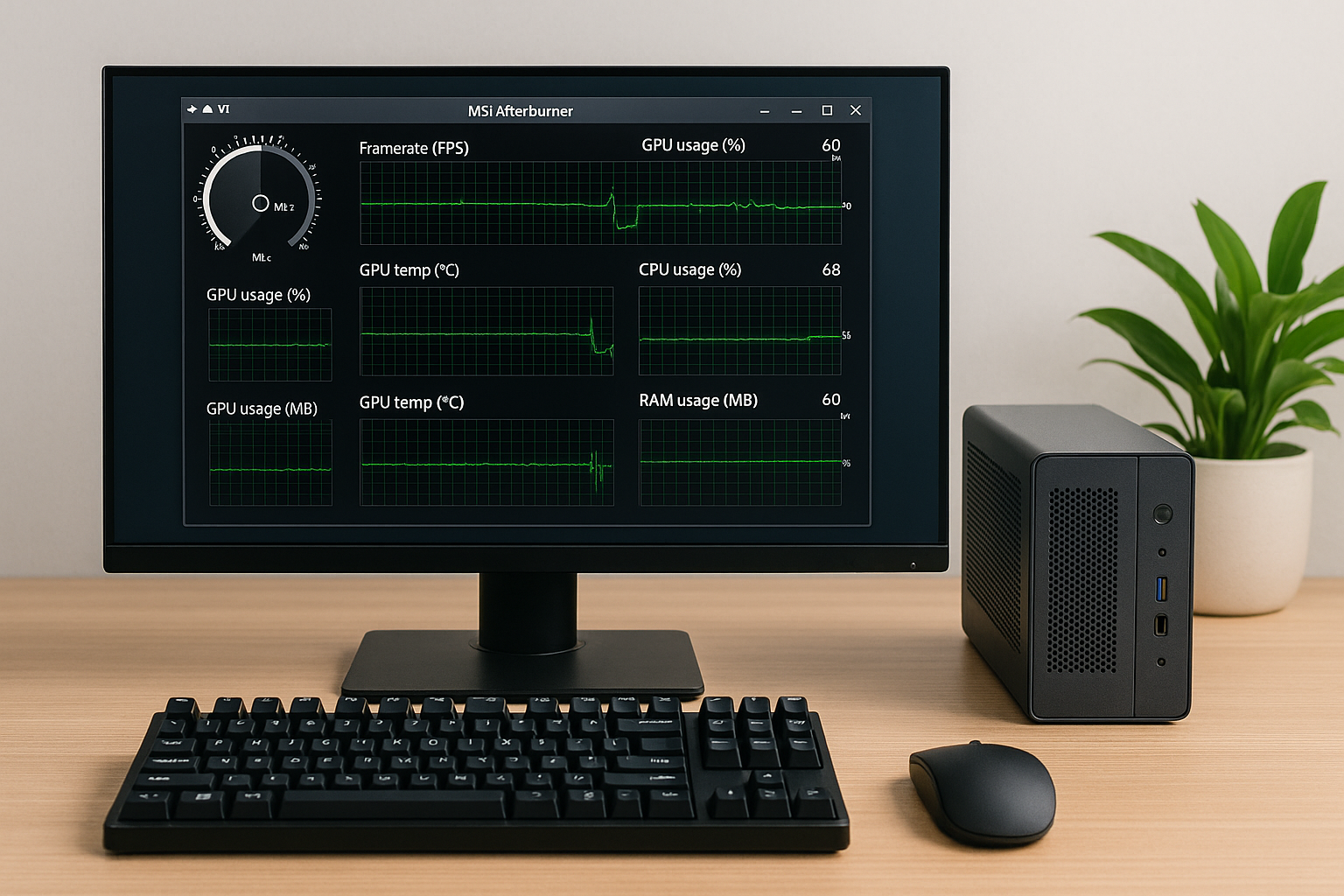
- MSI Afterburner + RivaTuner (FPS, temps, usage)
- HWMonitor (Thermal info)
- Intel Graphics Command Center / AMD Adrenalin Software
Look for:
- GPU usage (should stay high during gaming)
- CPU bottlenecking (check if CPU hits 100%)
- RAM utilization (if close to 100%, consider upgrade)
Bonus: Cloud Gaming as a Backup Plan
If your iGPU setup struggles with a specific title, use cloud services:
- GeForce NOW (free tier)
- Xbox Cloud Gaming
- Boosteroid / Shadow PC
These platforms allow you to stream games using remote hardware, bypassing the limitations of your own system.
Final Thoughts
Boosting FPS on integrated graphics is all about understanding your hardware and making smart adjustments—not just within your game, but across your entire system.
With dual-channel RAM, resolution management, the latest drivers, and thoughtful graphics tweaks, you can make even modest integrated setups deliver enjoyable, smooth gameplay.
It’s not magic—it’s mastery. Your iGPU is capable of much more than people think.

Chris Dalton is a tech enthusiast with a passion for helping others build high-performance PCs on a budget. He shares practical advice, in-depth guides, and honest insights to empower freelancers, gamers, and creators to get the most out of their hardware. With hands-on experience and a focus on smart, affordable solutions, Carlos Eduardo turns complex tech into accessible knowledge for all.